New feature3 minute read
Offers: put your best deal at the top of your booking page
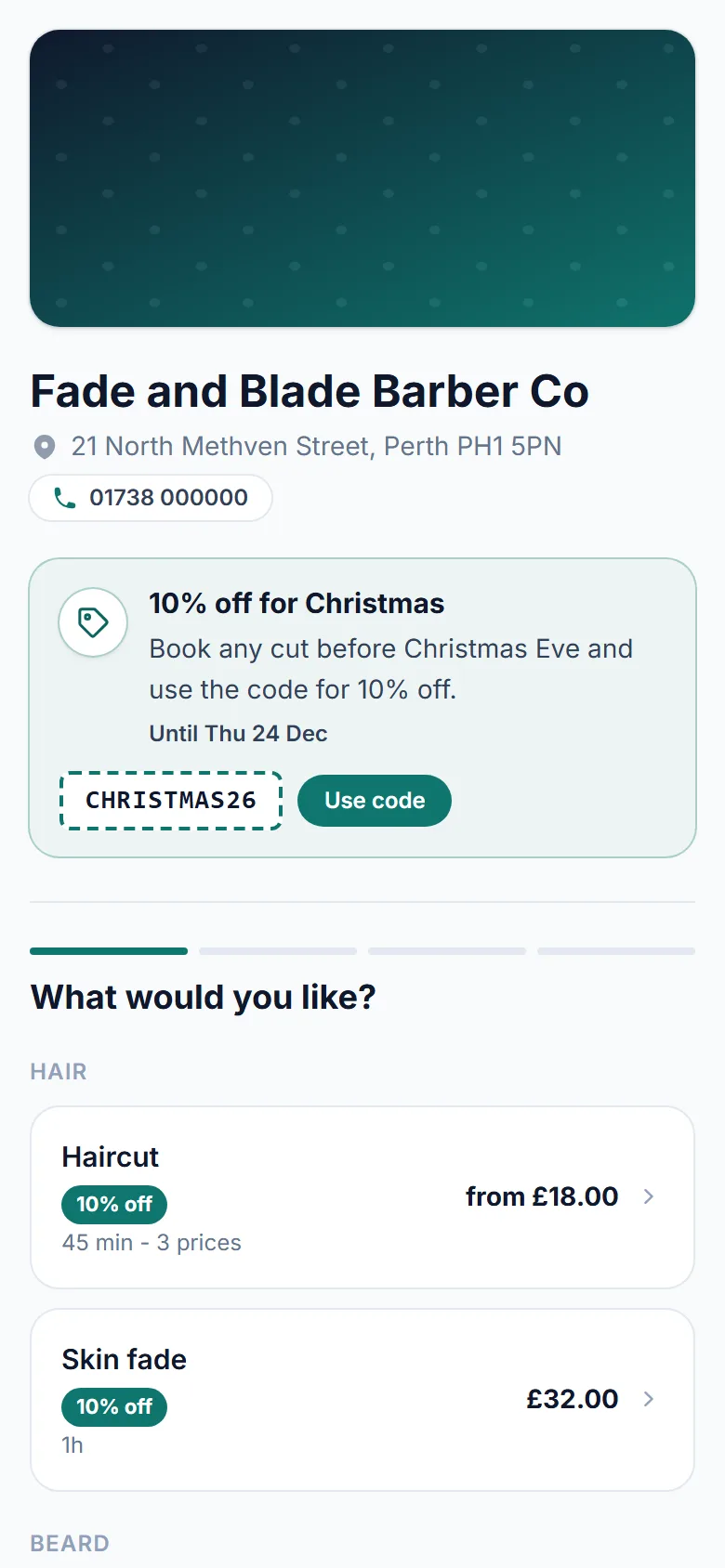
Running 10% off for Christmas? Now your booking page can say so. Write an offer, give it dates and a discount code, and it sits across the top of the page with a Use code button, a badge on the services it covers and a link you can share.

Director, FullDiary
A good offer only works if people see it. Until now, a discount code on FullDiary was something you had to tell people about: on a poster, in a post, at the end of an appointment. Offers put it where people are already deciding what to book, at the top of your booking page.
What your customers see
- The offer, first. A headline ("10% off for Christmas") and a line under it, in a panel across the top of your booking page, in your page's colours.
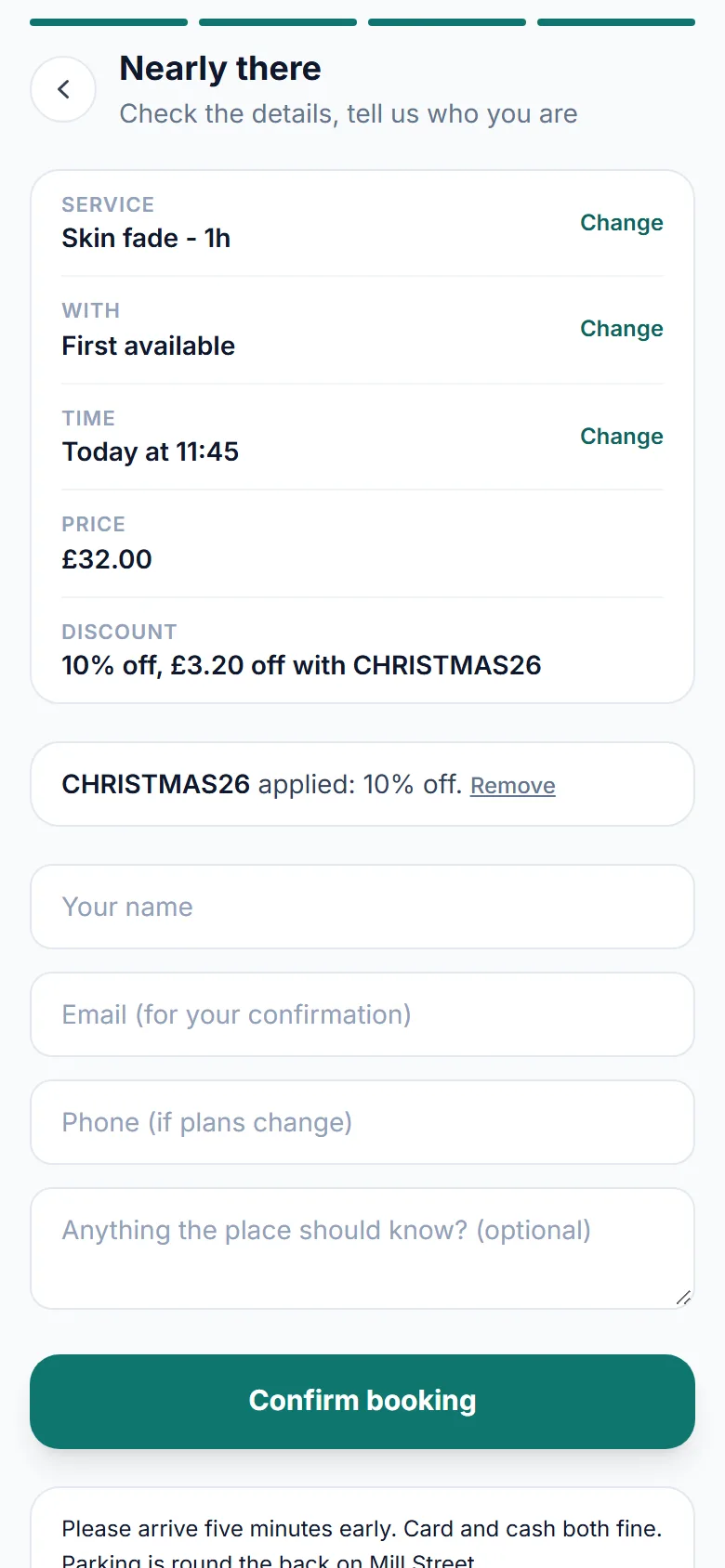
- The code, ready to use. If the offer has a code, it shows in a box with a Use code button. One tap copies it and fills it in for the booking, so it comes off on the last step without typing.
- A badge on the right services. The services the offer covers say so: "10% off", or "Offer" when there is no code.
- How long is left. "Until Thu 24 Dec", then "Ends tomorrow" and "Ends today" as the last days come.
The code's own rules still apply: who it is for, how many times it can be used and any minimum spend. FullDiary is a simple booking system for small businesses, and offers sit on the same booking page your customers already use, on a phone or a computer.
Ideas to try
- A seasonal discount. 10% off for Christmas, with dates, so it switches itself on and off.
- A new service. No code needed: "New: Thai foot massage, now bookable", with the badge on the new service.
- Your holidays. "Closed 24 to 27 December, book early", shown for the weeks before.
- A quiet month. £5 off in January, shared on Facebook with the offer's link.
Setting one up
Offers are part of Pro. Open Your shop (it takes your business's word, so it might say Your salon or Your clinic), choose Sell more, then Offers, then Add an offer. Write the headline and the line under it, pick a discount code if you want one in the banner (make it first under Sell more, Discount codes), choose the services that get the badge, and give it a Shows from and an Until date if you like. Switch an offer off whenever you want; one whose code you retire comes off the page by itself.
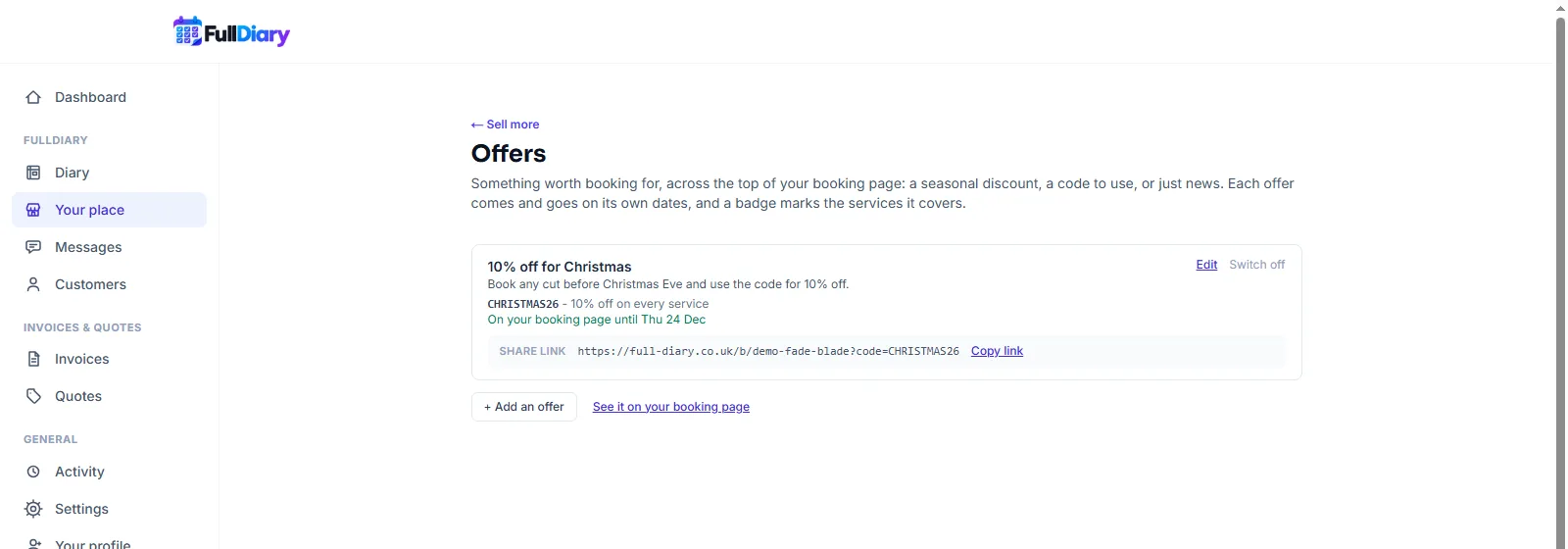
Every offer has a share link: your booking page with the code riding along. Post it on Facebook or Instagram, and whoever taps it has the code filled in when they book. Up to three offers show at once, newest first. Offers are on the website now, and in the FullDiary app from its next update. They show on your main booking page; the classes and block pass pages do not show them yet.
Questions people ask
- Do I need a discount code for an offer?
- No. An offer can be just a message, like a new service or the days you are closed. Add a code when you want money off, and customers can use it in one tap.
- Will the offer come down by itself?
- Yes, if you give it an Until date, and it can wait for a Shows from date too. It also comes off the page if its code is retired or runs out.
- Are offers free?
- Offers are part of Pro, at £9.99 a month a person, like discount codes. On the free plan you can see the page, with a note about what Pro adds.
Read next
Written by
Matt SucklingDirector, FullDiary
Matt runs Cynical Software Ltd, the Perthshire company that makes FullDiary, and builds it.