
Guide6 minute read
How to get more Google reviews for your business
Plenty of happy customers never think to leave a review. Get your review link, ask everyone the day after their visit, make it one tap, and never pay for a review or only ask the customers you know were happy.

Director, FullDiary
When someone searches for a barber, a salon or a groomer near them, your Google Business Profile is often the first thing they see, with your star rating and the number of reviews right next to your name. Google says more reviews and positive ratings can help your local ranking too. The good news: most of the work is just asking, at the right time, in the right way.
Step 1: get your review link
Your review link opens the review box for your business straight away, so a customer doesn't have to search for you first. It's the single biggest thing you can do, because every extra tap loses people.
- On a computer, sign in to the Google account that manages your Business Profile.
- Search Google for your business name. Your profile appears with the tools only you can see.
- Choose Read reviews, then Get more reviews.
- Press Copy. The link is on your clipboard, ready to paste into a message, an email or your booking system.
- The same box has a QR code. Right-click it and save it to print for your desk or mirror. Google only makes the QR code on a computer, not on a phone.
One catch: customers need to be signed in to a Google account to leave a review. They can make one with any email address, not only Gmail.
Help: how to find your Google review link
Step 2: ask at the right moment
- The day after works best. The visit is fresh, the haircut or the nails still look good, and they're not standing at your counter with their coat on.
- Mention it as they leave, lightly: "If you've got a minute tomorrow, a Google review really helps us." Then send the link, so the ask and the tap arrive together.
- Put the QR code where people wait: at the desk, by the till or on the mirror. Google suggests receipts and thank-you emails too.
- Ask everyone. Not just the regulars who love you. Google's rules don't allow asking only the customers you expect to be happy, and an honest mix of reviews reads as more believable anyway.
- Ask once. One friendly message is a favour. Three is a nag, and nags don't get five stars.
Step 3: what to say (three messages to copy)
Keep it short, personal and easy to ignore. Swap in your own names.
- In person: "Thanks for coming in. If you've got a minute tomorrow, a Google review would really help us. I'll send you the link."
- By text or WhatsApp: "Hi Sarah, thanks for coming in yesterday. If you have a minute, a quick Google review would mean a lot to us: [your link]. Thanks, Jo"
- By email: "Hi Sarah, thanks for coming in for your colour yesterday. How was it? If you have a minute, a review helps more than you'd think, it's how the next person finds us: [your link]. And if anything wasn't right, just reply and tell me."
That last line matters. Someone who wasn't happy now has a way to tell you first, which is better for both of you than a one-star review.
What you must not do
Google's rules for businesses are strict, and since April 2025 UK law has teeth too. Don't:
- Offer anything for a review. No discount, free treatment or money, even for an honest review. Google counts it as fake engagement and can take the reviews down.
- Only ask the happy ones, or discourage bad reviews. Google's policy says businesses must not selectively ask for positive reviews.
- Pressure people at the counter. Google says businesses shouldn't require or pressure customers to leave a review while they're on the premises. Ask, then let them do it later.
- Ask staff, family or friends to review you. Google treats reviews based on a conflict of interest, including working for you, as against its rules. Don't set staff a review target either.
- Buy or write fake reviews. Since 6 April 2025 the Digital Markets, Competition and Consumers Act 2024 bans fake reviews, and reviews that hide the reviewer was given something, and the CMA can now enforce it itself. Leaving a fake bad review on a competitor is banned by Google too.
Replying to reviews
Reply to as many as you can, good and bad. Google says replies show you value the feedback, and the next customer reads them as much as the review.
- Good reviews: a short, personal thank you. Use their first name, mention what they came in for, and sign off with yours.
- Bad reviews: stay calm and keep it short. Thank them, say what you'll do about it, apologise if it's due, and offer to sort it out by phone or email.
- Keep their details private. Never mention their health, a reaction or what you know about them from their record, even to defend yourself.
- Don't argue in public. The person you're writing for is the next customer reading it, not the reviewer.
Asking every customer automatically, with FullDiary
Remembering to message everyone the day after is the part that slips when you're busy. FullDiary does it for you.
- Paste your review link once, under Your shop, Keeping customers.
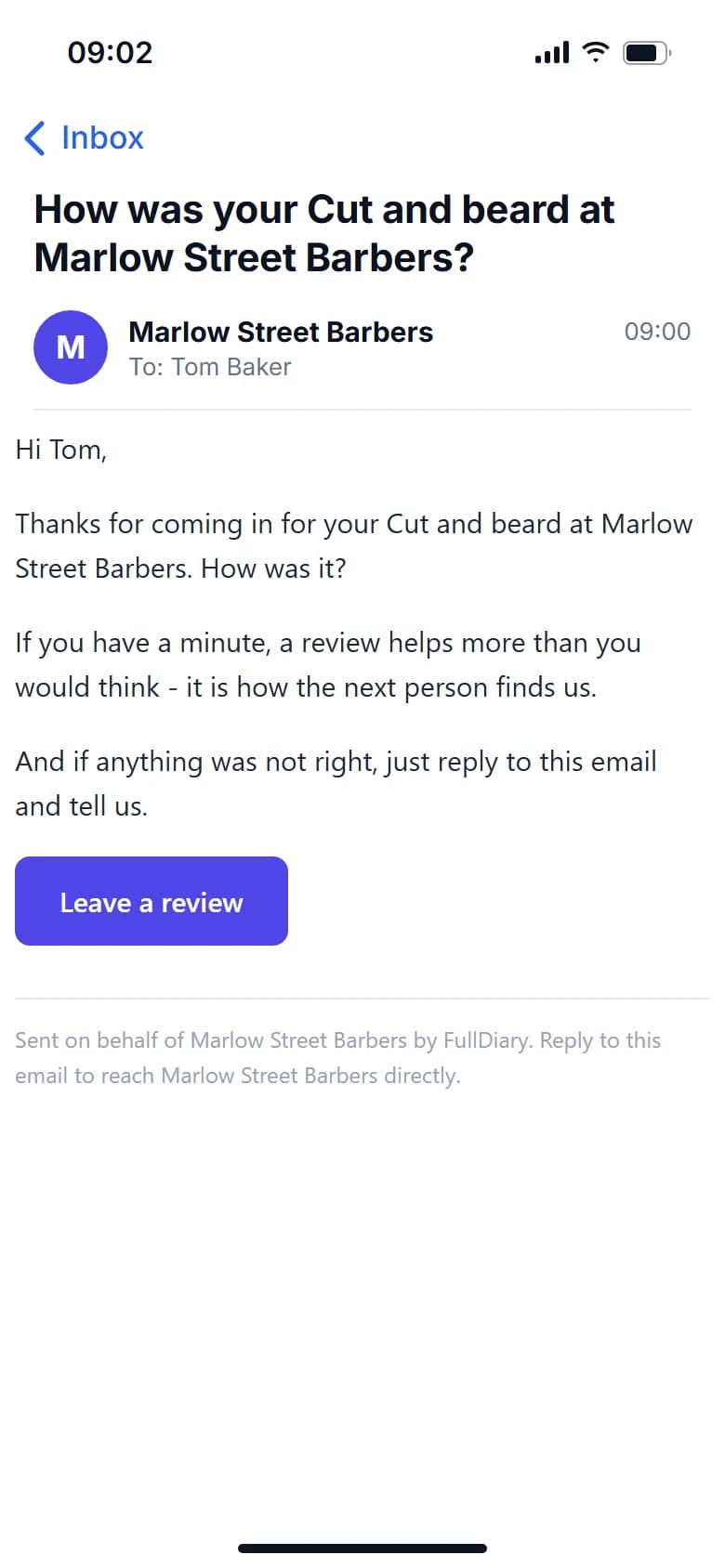
- The day after each visit, the customer gets one email asking how it was, with a Leave a review button that opens your Google review box.
- Everyone who came is asked, not just the ones you picked. Never after a no-show or a cancellation, and never chased with a second email.
- Replies come to you. The email ends "if anything was not right, just reply", and a reply goes straight to your inbox, not to a review site.
- Say it your way. Under Your shop, Emails, write the thank-you in your own words, with the customer's first name and the service filled in for you.
Review emails are free on every plan.
Help: rebooking reminders and review emails
Where these rules come from
Google's own guide to the review link and QR code.
Google: create a link or QR code to request reviews
Google's tips on asking for reviews and replying to them.
Google: tips to get more reviews
How reviews feed into where you appear in local results.
Google: tips to improve your local ranking
The rules on incentives, asking only happy customers, pressure on the premises and conflicts of interest.
Google Maps: prohibited and restricted content
The UK ban on fake and concealed incentivised reviews, from the Competition and Markets Authority.
This guide is general information, not legal advice. Google moves its buttons now and then; its help pages have the current steps.
Questions people ask
- Can I offer a discount for a Google review?
- No. Google counts any reward for a review, such as a discount or a free treatment, as fake engagement and can remove the reviews. In the UK, a review that hides a reward is also banned by law.
- Can I just ask my happy customers?
- No. Google's rules say businesses must not selectively ask for positive reviews. Ask everyone, and give unhappy customers a way to tell you directly.
- Can my staff or family leave a review?
- Not for your business. Google treats reviews based on a conflict of interest, including working for you, as against its rules.
- Why can't my customer leave a review?
- They need to be signed in to a Google account. They can make one with any email address, not only Gmail.
- How should I reply to a bad review?
- Calmly and briefly: thank them, say what you'll do about it, apologise if it's due and offer to sort it out directly. Never mention their health or anything private.
Read next
Written by
Matt SucklingDirector, FullDiary
Matt runs Cynical Software Ltd, the Perthshire company that makes FullDiary, and builds it.