
New feature3 minute read
Two-factor authentication for your FullDiary login
Your diary holds your customers' names, numbers and bookings. Now you can protect your login with a six-digit code from an authenticator app, so a stolen password is not enough to get in. You can require it for anyone on your team too.

Director, FullDiary
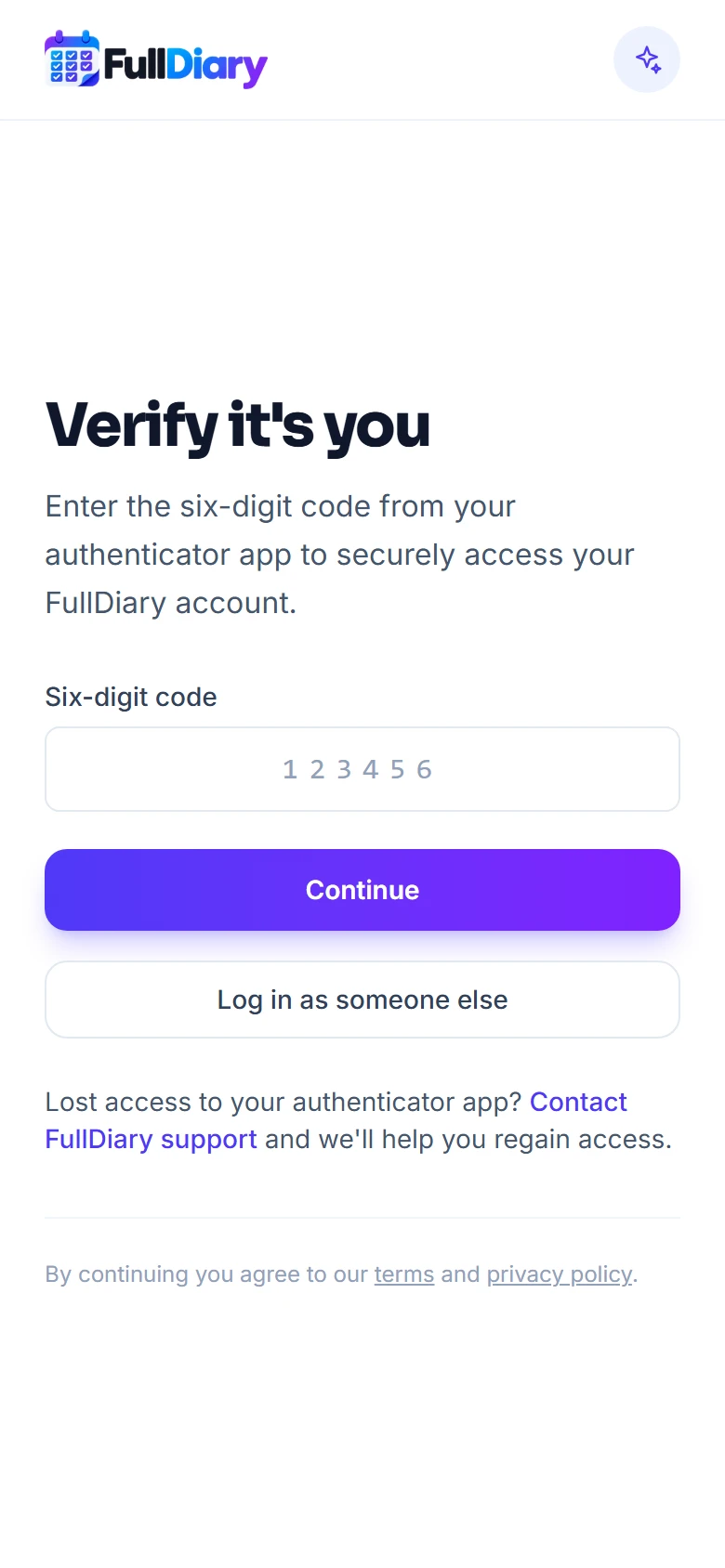
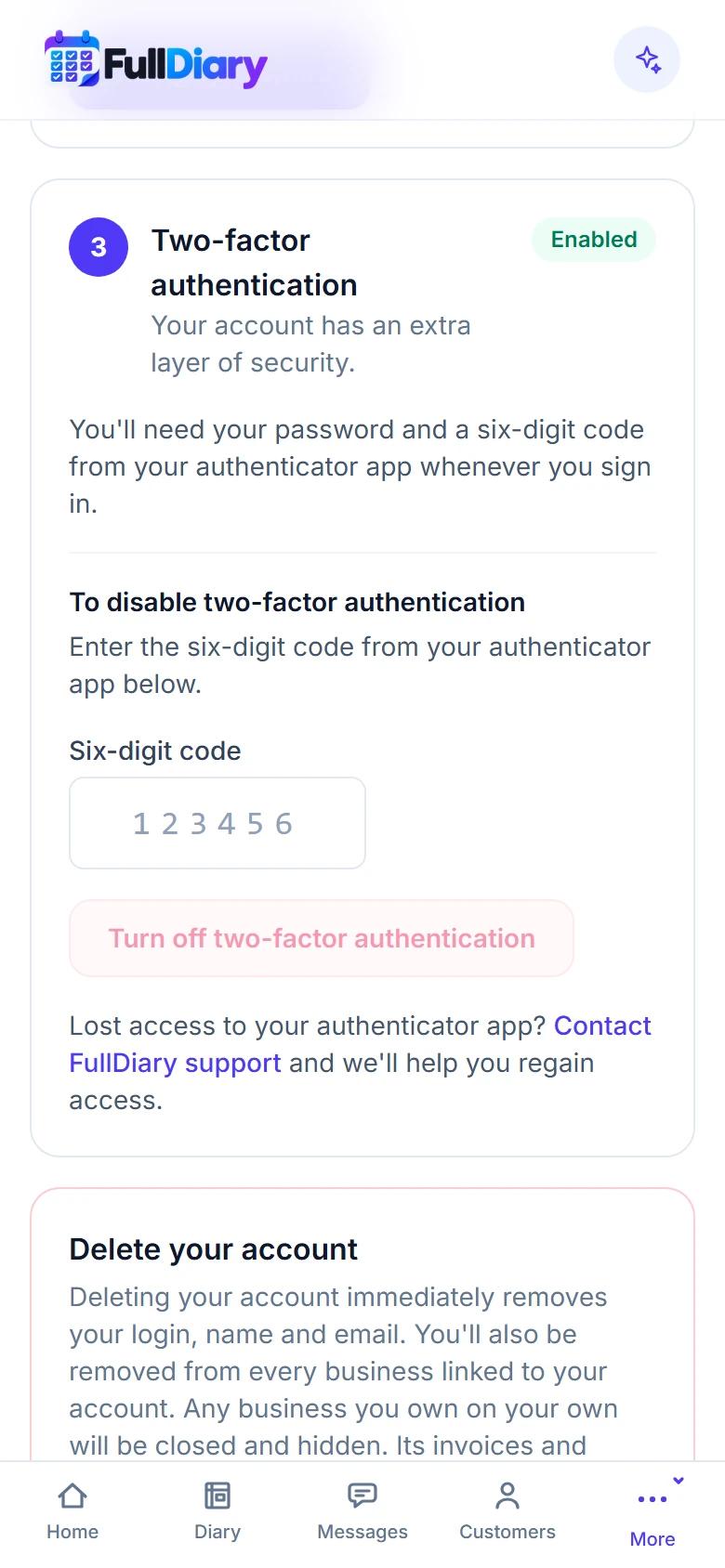
FullDiary is the booking system for UK small businesses, with an online booking page, a diary and payments in one place. Your login opens all of it, including your customers' details. Two-factor authentication means a password on its own no longer gets anyone in.
A code as well as your password
Once it is enabled, logging in asks for a six-digit code from your authenticator app after your password. The same goes if you log in with Google or Apple. The code changes every 30 seconds and only your app shows it, so somebody who has guessed or stolen your password is stopped at the door.
Switching it on
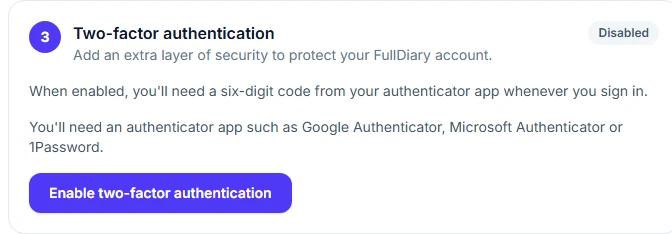
On the website, open Account & plan, then Login and password, and press Enable two-factor authentication. Scan the picture with your authenticator app, or type the key in by hand, then enter the six-digit code the app shows. That is it. You need an authenticator app such as Google Authenticator, Microsoft Authenticator or 1Password, on any phone, tablet or computer.
Help: two-factor authentication
Require it for anyone on your team
Each member of your team can enable it on their own login, from Login and password at the foot of Your profile. If you would rather not leave it to chance, you can require it, person by person. Open Shop settings, then Locations, team and hours, press Edit on someone and switch on Require two-factor authentication under Security. You might require it for a manager who sees the takings and leave it to choice for someone who only sees their own diary.
From then on, that person is asked to set it up before they see the diary or any customer details, if they have not already. That includes someone who is logged in at the time, who is asked straight away, so it is worth telling them first. They cannot turn it off while you require it, and each person's row on that page shows you whether theirs is enabled. The switch and those rows are for the owner, or anyone you have let manage logins.
In the FullDiary app
The FullDiary app for iPhone and Android asks for the code from its next update. Until that update is out, a login with two-factor authentication enabled uses the website. Tap to Pay only works in the app, so that login cannot take contactless payments until the update. If you or your team run the day from the app, wait for the update before you enable it or require it.
If you lose access to your authenticator app
Contact FullDiary support and we will help you regain access. We reply to the email address you log in with, and reset your two-factor authentication once you answer from it, so nobody else can ask on your behalf. You are emailed when it is reset, and you can set it up again straight away. If your business requires it, you are asked to before you carry on. There are no backup codes and no codes by text message.
Questions people ask
- Which authenticator apps work?
- Any app that shows six-digit codes, including Google Authenticator, Microsoft Authenticator and 1Password.
- Can my staff use it?
- Yes. Each person enables it for their own login under Login and password, and an owner can require it for anyone on the team, under Security on their card in Locations, team and hours.
- What if I lose access to my authenticator app?
- Contact FullDiary support. We reset it once you reply from the email address you log in with. You can then set it up again, and are asked to if your business requires it.
- Which plan is it on?
- Every plan, Free and Pro.
Read next
Written by
Matt SucklingDirector, FullDiary
Matt is a software engineer with over 15 years of experience. He started FullDiary to build a fairer booking system, and he still builds it himself.