
New feature3 minute read
Take card payments on a proper card reader at the counter
FullDiary now works with Stripe's countertop card readers. Send a booking or a whole sale to the reader from the diary, the customer pays on it, and the booking is marked paid by card.

Director, FullDiary
FullDiary is the booking system for UK small businesses, with an online booking page, a diary and payments in one place. You could already take a card on your own phone with Tap to Pay, or send a payment link. Now a salon with a front desk can use a proper card reader too.
A reader on the counter suits a busy desk. The customer pays on the reader while you get on with the next booking, and a card that insists on chip and PIN is no trouble.
Which readers work
FullDiary works with three of Stripe's countertop readers. The Stripe Reader S700 and the BBPOS WisePOS E connect over your wifi. The Stripe Reader S710 can also use mobile data, so a payment still goes through if the wifi drops.
You buy the reader from Stripe, in your Stripe Dashboard under Terminal, and it is yours. There is no rental and no contract, and FullDiary adds no charge. Each payment costs Stripe's usual in-person card fee.
Card machines, card readers and Tap to Pay compared
Taking a payment
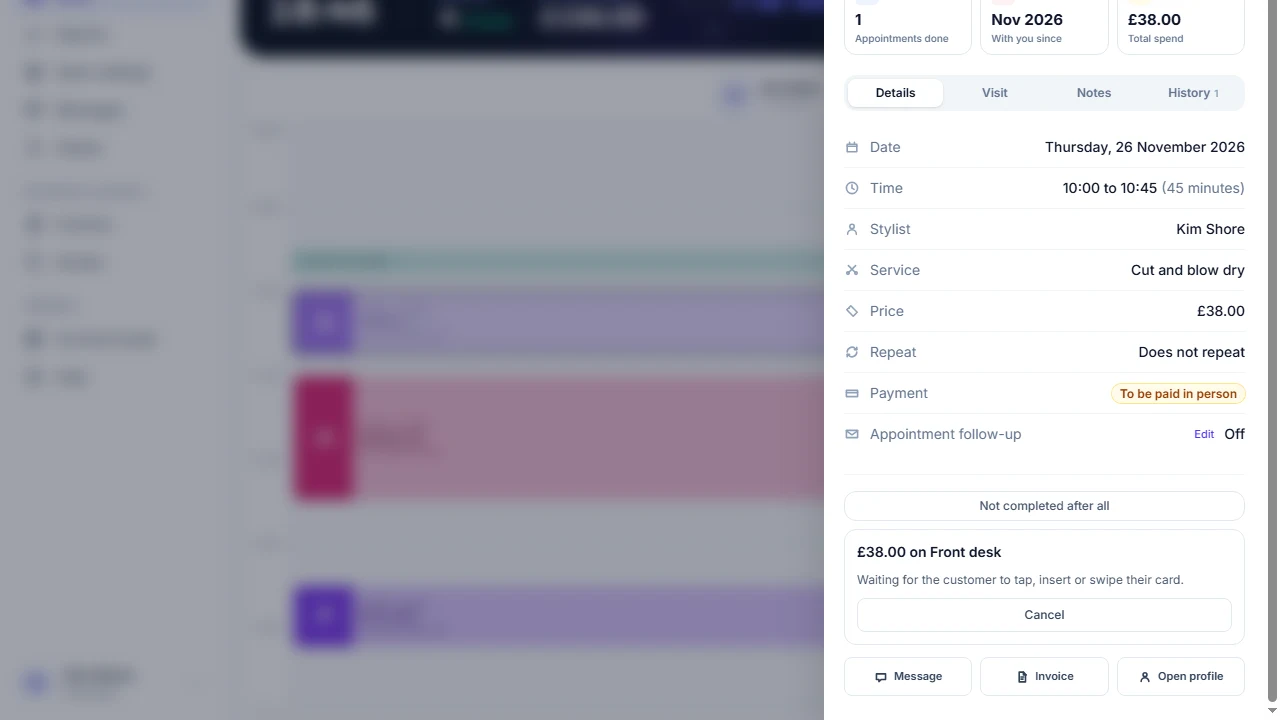
Open the booking in the diary, check the amount and press Send to card reader. The amount appears on the reader, the customer taps, inserts or swipes their card, and the booking is marked paid by card as soon as it goes through.
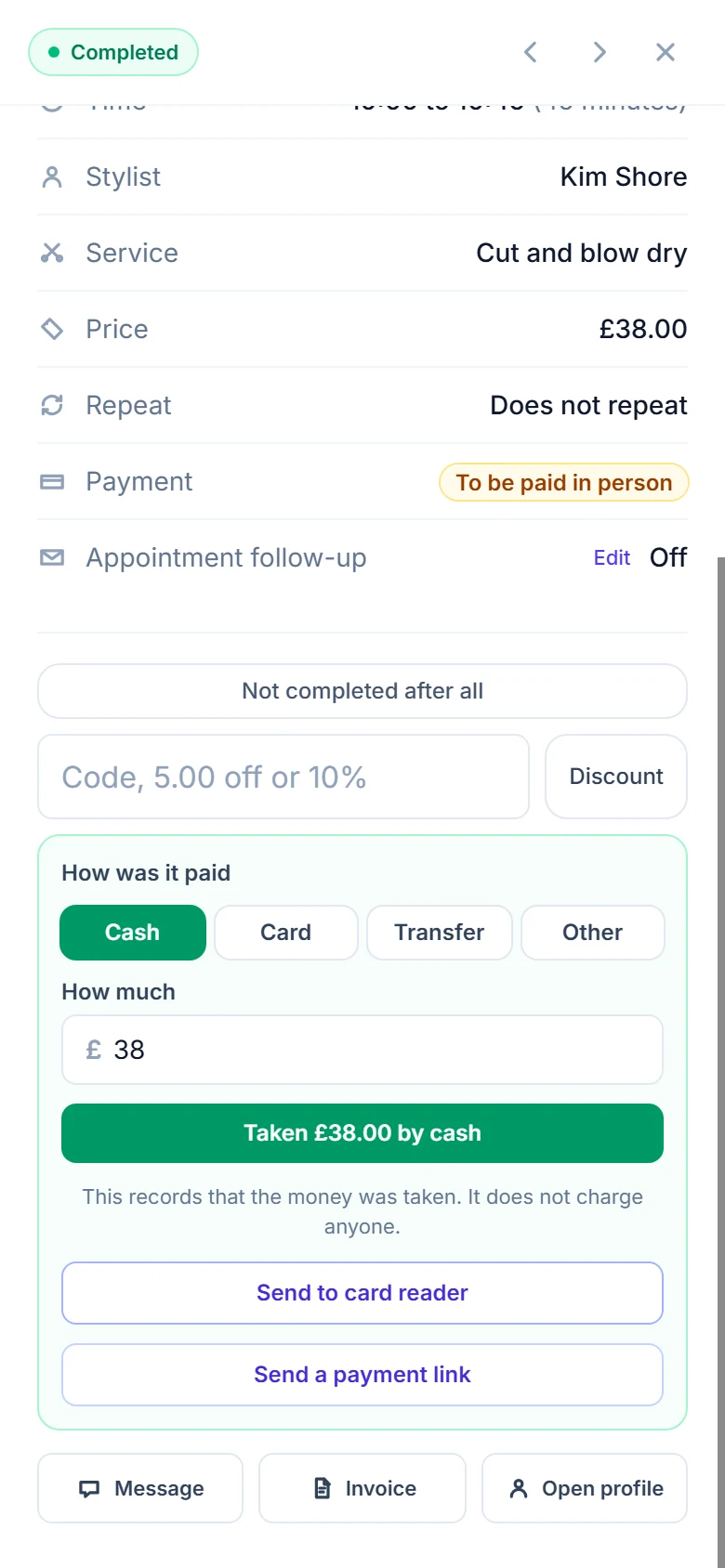
Selling a product or a pass with the booking? The Sell sheet sends the whole sale to the reader as one payment.
If a card is declined, FullDiary shows why. Press Try again and the same payment goes back on the reader for another card, so nobody is charged twice. Cancel takes the payment off the reader.
Several readers
Give each reader a name, like Front desk or Upstairs, and each gets its own button. With more than one location, say where each reader sits and a booking offers its own location's reader first. A reader takes one payment at a time, so a second booking sent to a busy reader is told so.
How to set it up
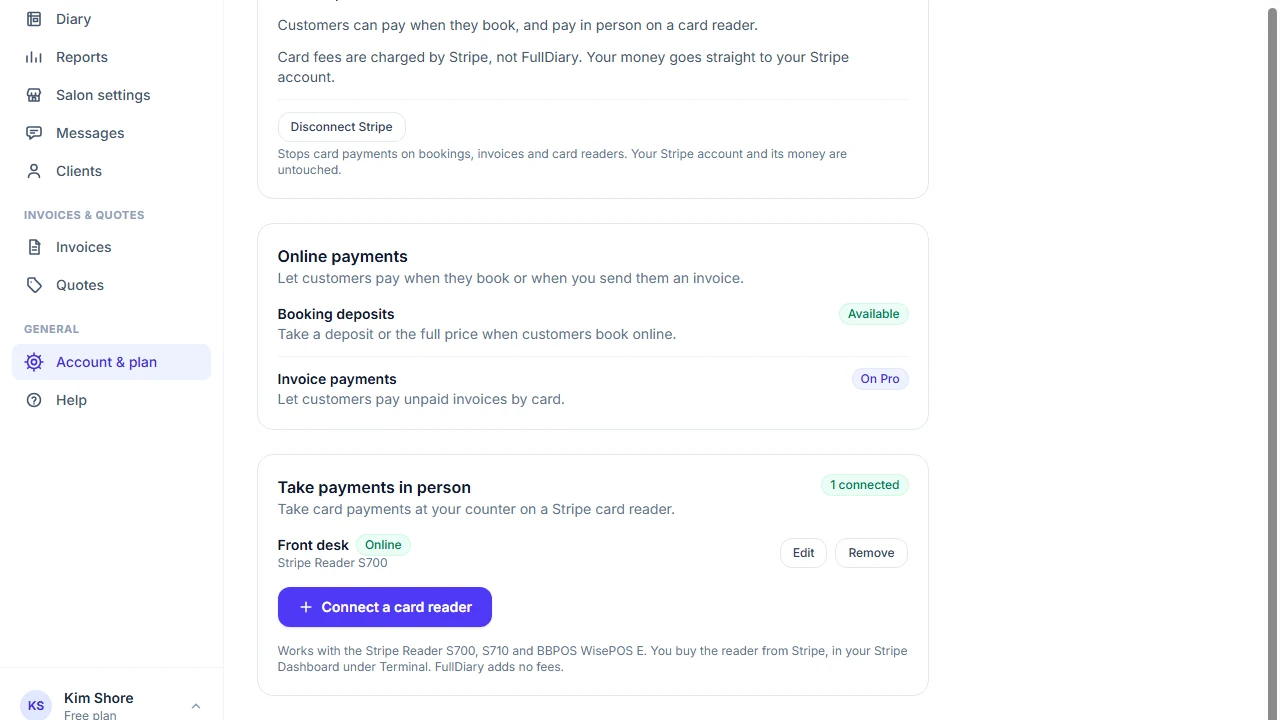
You need Stripe connected and verified, and your address under Locations, team and hours. Switch the reader on, connect it to your wifi, and choose Generate pairing code in the reader's settings. Then open Account & plan, Payments, press Connect a card reader and type the three words it shows. Only the owner or a manager can pair a reader, and anyone who takes payments can send to it.
In the app
Sending to a card reader and pairing one from the FullDiary app, on iPhone and Android, comes with its next update. Until then, use the website.
Questions people ask
- Which card readers work with FullDiary?
- The Stripe Reader S700, the Stripe Reader S710 and the BBPOS WisePOS E. You buy one from Stripe in your Stripe Dashboard, under Terminal.
- What does it cost to use a card reader with FullDiary?
- FullDiary adds nothing, on any plan. You pay Stripe for the reader once, and Stripe's usual in-person card fee on each payment.
- Can I still use Tap to Pay and payment links?
- Yes. The card reader sits beside them, so you can take a card on the reader, on your phone, or by a link the customer pays on theirs.
- Where does the money go?
- Straight into your own Stripe account, the same as deposits and every other card payment in FullDiary.
Read next
Written by
Matt SucklingDirector, FullDiary
Matt is a software engineer with over 15 years of experience. He started FullDiary to build a fairer booking system, and he still builds it himself.